

Step 5 – Copilot Summary in BC
Author: Kim Dallefeld, MVP, MCT, MCP
You may have noticed a feature when you open a customer or vendor record in the Fact Box pane. If you have hidden your Fact Boxes, open the pane. There is an option called Summary and just to the left of the work is the Copilot symbol.
Let’s take a look at what this Copilot feature provides. First step is to click on the button ‘Start Summarizing.’ The results that I received were:
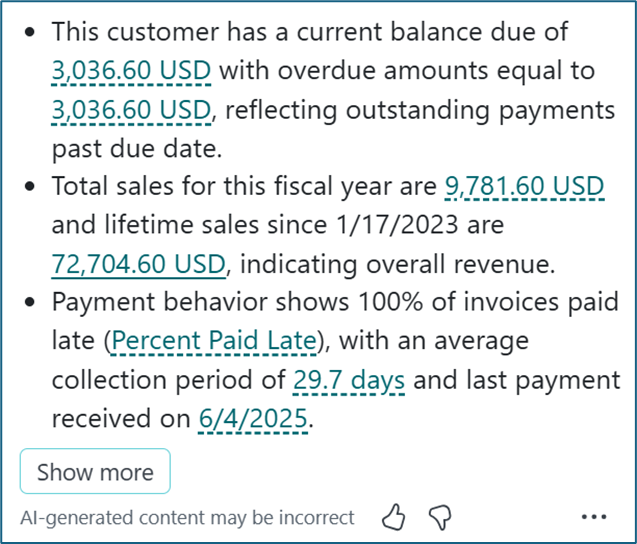
Talk about good data! It’s easy enough to see the balance due and the fiscal year sales without this summary. And getting to the Statistics page would show the lifetime sales. But getting payment behavior is not easy to come by.
Remember if its displayed in a color, that’s drillable to more data!
There was a ‘Show More’ button, so we had to see what that provided. CoPilot opened and displayed the above again along with additional data.
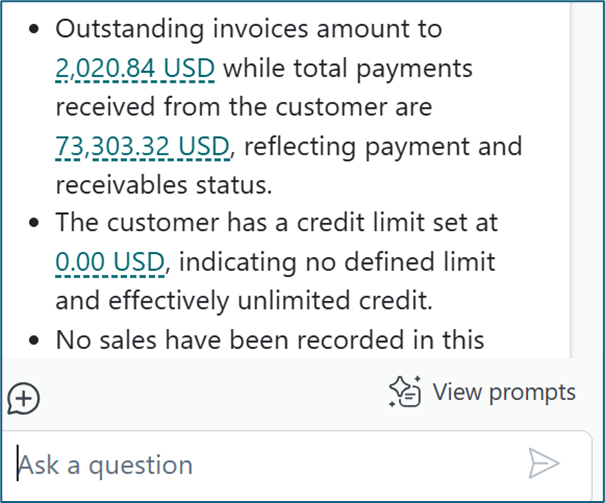
All of this is data that you could find but having it summarized and provided here are great tools for your Collection efforts.
So far, what I feel is most important is that users don’t have to know where BC data resides, what fields to filter on and how to enter the filters to get to the data that they need.