
Kim’s Korner: Hiding in Plain Sight

If you came to Business Central from a desktop accounting package, a spreadsheet-based close, or simply years of training in T-accounts, you probably noticed something odd the first time you opened General Ledger Entries. There is one column called Amount. Positive numbers are debits, negative numbers are credits, and you are left doing the sign-flip in your head every time you review an entry.
Most accountants I talk to assume this is just how Business Central works. It isn’t. The debit and credit columns are already there, waiting behind a single setting that most companies never touch after go-live. This week’s hidden gem takes about thirty seconds to switch on, and it changes how every ledger page in the system reads.
Why you can’t find them in Personalize
The natural first move is to open Personalize on the General Ledger Entries page and go looking for Debit Amount and Credit Amount in the field list. Here is the frustrating part: they aren’t offered. You can search, scroll and add every other field on the page, but the debit and credit columns simply don’t appear.
That isn’t a permissions problem or a missing extension. The visibility of those columns is controlled centrally by a field called Show Amounts on the General Ledger Setup page. When it is set to Amount Only, Business Central hides the Debit Amount and Credit Amount fields entirely, so Personalize has nothing to offer you.
The fix: one setting in General Ledger Setup
- Select Search (Alt + Q), enter General Ledger Setup, and open the page.
- On the General FastTab, choose Show more so the full list of fields is visible.
- Find the Show Amounts field and change it from Amount Only to All Amounts.
- Go back to General Ledger Entries (or any page that lists amounts) and refresh it.
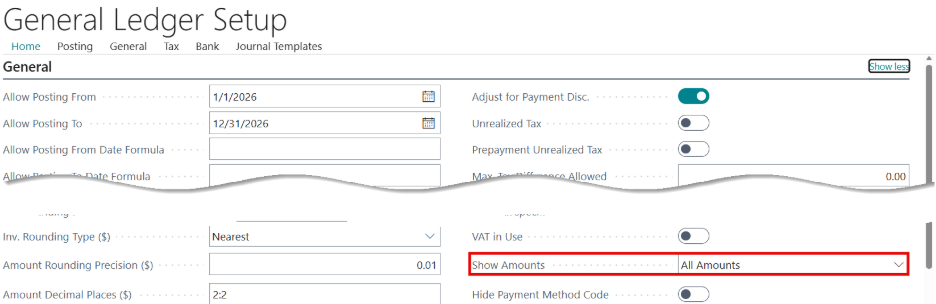
That’s it. You will now see three columns side by side: the signed Amount you are used to, plus separate Debit Amount and Credit Amount columns. Entries read the way they would on a printed journal, and a reviewer can scan a page without mentally translating minus signs.
Pick the view that suits your team
Show Amounts has three options, and each one changes which amount columns appear on journals and ledger entry pages.
| Option | What you see | Good fit for |
| Amount Only | A single signed Amount column (plus Amount (LCY) where relevant) | Teams comfortable reading positive and negative amounts |
| Debit/Credit Only | Debit Amount and Credit Amount columns, without the signed Amount | Accountants who want a traditional journal layout |
| All Amounts | Amount, Debit Amount and Credit Amount together | Mixed teams, reviewers and auditors; the most flexible choice |
My recommendation is All Amounts. It keeps the signed Amount column for anyone who filters or totals on it, and it gives everyone else the debit and credit view. Because the columns are now available, each user can still use Personalize to hide whichever ones they don’t want on a particular page.
A few things to know before you flip the switch
It is a company-level setting. General Ledger Setup is configured per company, so the change applies to everyone in that company, and you will need to repeat it in each company you manage. Check with your administrator or partner first if you don’t normally have access to setup pages.
Journals need one extra click. On the General Journals page, the Show Amounts setting only takes effect in Show More Columns mode. If you have changed the setting but your journal still shows a single Amount column, switch the journal to Show More Columns and the debit and credit fields will appear.
Nothing about your data changes. This is purely a display choice. Posting, balances and reports all work exactly as before; you are only deciding which columns Business Central puts on the screen.
Why this matters
Small friction adds up. When a staff accountant has to pause on every line to work out whether a negative number is a credit to revenue or a reversal of an expense, reviews slow down and mistakes slip through. Debit and credit columns also make Business Central feel familiar to new hires, external accountants and auditors, which shortens the “how do I read this?” conversation at year-end.
It’s a classic hidden gem: no license, no extension, no customization. Just a field that was there all along.
Your turn
Open General Ledger Setup today and check what your Show Amounts field is set to. If it says Amount Only, try All Amounts and let me know how your team likes it. And if you have a favorite setting that’s hiding in plain sight, share it in the comments. It might end up in a future Kim’s Korner.
#BusinessCentral #MSDyn365BC #Dynamics365 #Accounting #ERP #MicrosoftMVP